Getting your details…
This setup link looks incomplete.
Please open the link from your welcome email. If it keeps happening, email [email protected] and we'll get you sorted.
Step 2 of 3 · Unlock Lexi
// about 3 minutes
Now let's create Lexi's token.
This one step is what lets Lexi book appointments, send follow-ups, and write your emails — on her own. We'll walk you through every click.
Log in to your back office
To create Lexi's token, you first need to log into your back office — the account we built for you. Open the link below — it launches in a new tab, so keep this page open too. Then follow the steps to create your token and bring it back here.
Log in at app.getlexiai.com with:
Username
—
Password
—
Want to set your own password instead? Reset it here using the username above.
Your back office
We've built you a back office. Every lead, conversation and appointment lands there. It's already running — you don't have to build anything.
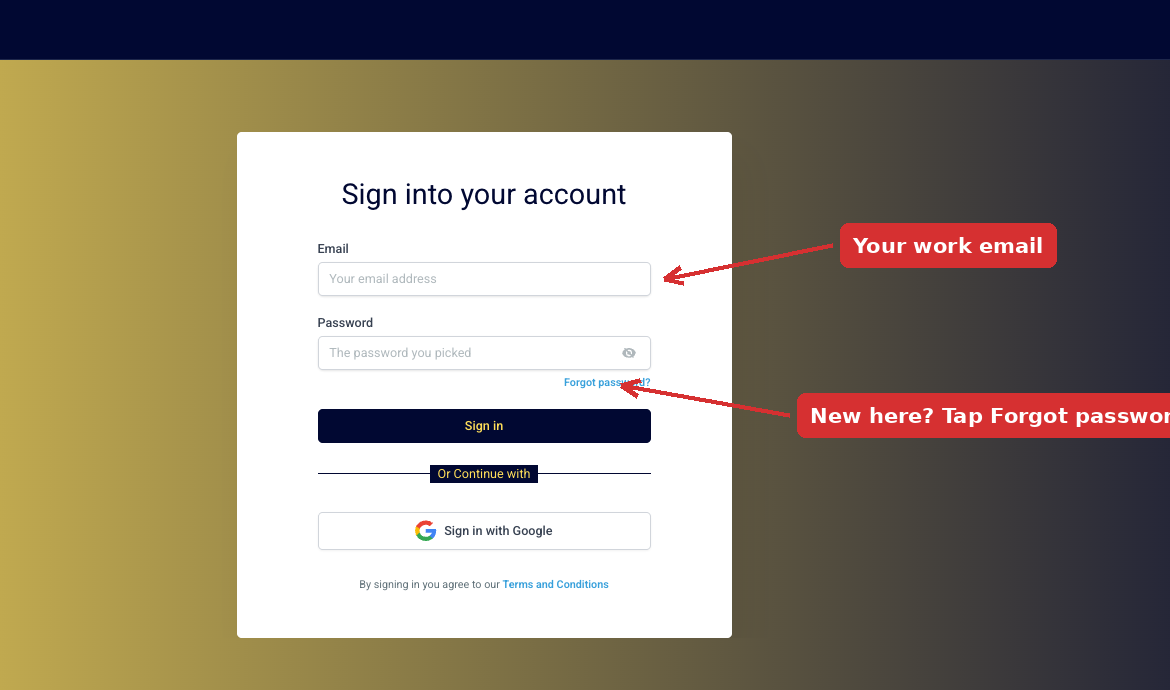
Expect a 6-digit code, every time
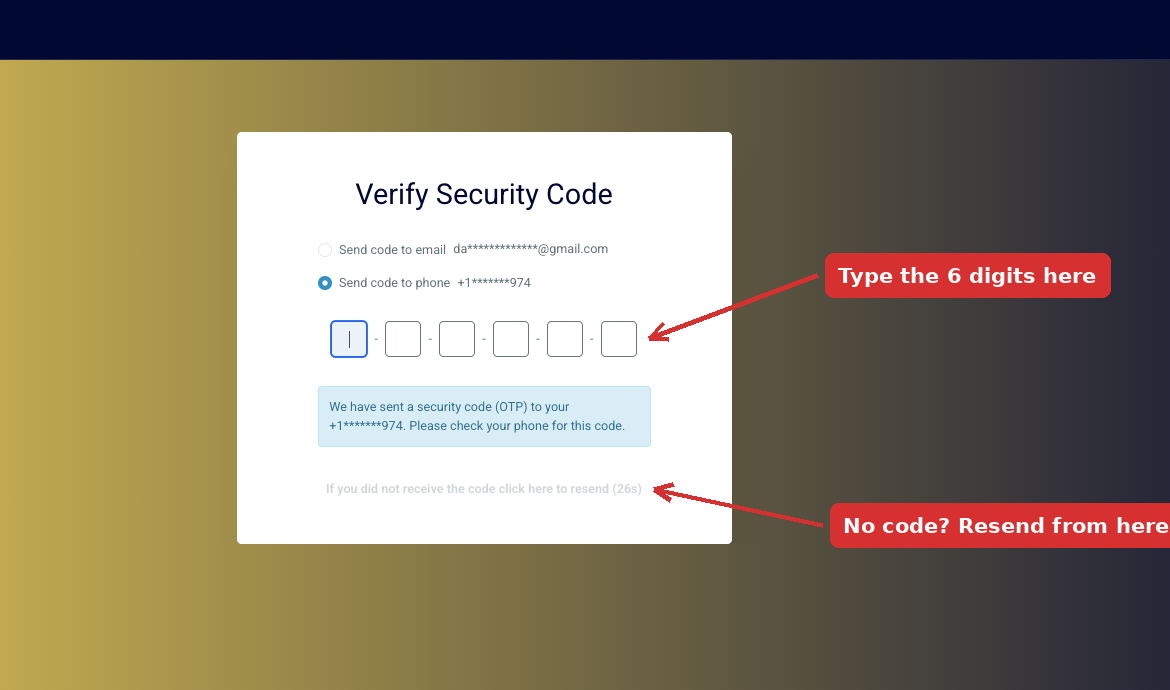
After your password you'll be asked for a 6-digit code, and you pick where it's sent — your email or your phone. This happens on every login, not just the first one. It's how the platform works and it can't be switched off — nothing is wrong with your account.

Save your password now
Copy the username and password above and keep them somewhere you'll find them again. If you ever lose the password, use Forgot password on the login page with the email you signed up with — it'll let you set a new one and take you straight in.
In the left menu, scroll all the way to the bottom and click Settings.


Create the token and name it after Lexi
So you'll always know this one is Lexi's.
In the Settings menu on the left, click Private Integrations.

Click Create new integration in the middle of the screen.

In the Name box, type
Lexi. Then paste this into the Description box:
Paste into the description box
Lexi — my AI business assistant from Lexi AI. This lets Lexi answer my calls, book appointments on my calendar, and follow up with my leads by text and email on my behalf.
Click Next.

Turn on Lexi's permissions
This is what lets Lexi actually do the work for you — so go slow on this part.
Click the dropdown arrow in the Select scopes box, then click Select all at the top of the list. That's it — leave every scope on. Lexi needs the full set to answer your calls, book appointments, and follow up with your leads.

Scroll down and click Create. A box titled "Security Risk" will pop up.
Don't worry — this is expected. It shows up because a few of Lexi's permissions are marked as sensitive, and those are exactly the ones that let her book appointments, answer calls, and follow up with your leads by text and email. Just click Confirm and you're good.

Copy your token and bring it back
Almost done.
Click Copy next to your token — the long code starting with
pit-.
pit- token
After you copy it and close that window with the X, you'll land on Lexi's token page. Click the back arrow next to "Lexi" at the top — that is the only thing you click on this screen.
Do NOT click either "Rotate PIT Token" button. Rotating replaces the token you just copied — and Lexi won't be able to work.

Back on your list, there'll be a small red triangle next to Lexi's name.
That just means Lexi has full access — which is exactly what she needs. If you see it, you did it right.

Step 3 of 3 · Your Portal
// you're all set
Setup complete
Lexi's ready. Go put her to work.
Your setup is done. Lexi is live and waiting inside your portal — your private command center to see her work, talk to her, and run your business.
Your portal is ready!
One click gets you in — no password needed.
Open my portal →
Opens in a new tab, so this page stays here with your login. We've emailed you this link too, in case you want it later.
or use your login
Go to portal.getlexiai.com and sign in with:
Username
—
Password
—
One quick thing about your back office. Your calendar and settings finish building a few seconds after you hand over your token, so if you already have your back office open it may still look empty. Just refresh that page and everything will be there.
Here's what's waiting inside
Talk to Lexi live
Ask her anything and hear her answer — right from your portal.
Easily make her an expert
Add your docs so Lexi knows your business inside and out.
Unlock everything Lexi can do
Quick walkthroughs to get her fully dialed in for your business.